
Using a budget in this way can be used for many different things such as preparing for Christmas.
This guide shows you how to create a budget spreadsheet in Microsoft Excel.
You’ll need:
- A computer with Excel installed
Step 1: Open up Excel so that you have a blank spreadsheet.
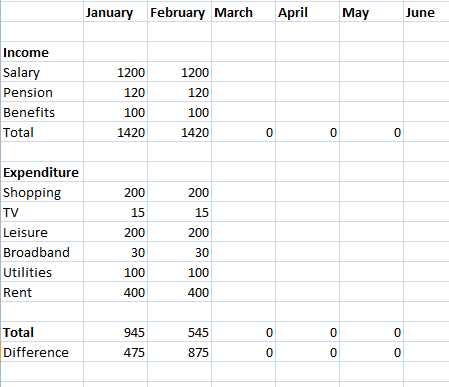
Step 2: The spreadsheet needs to have information
put in it, to calculate the figures for your budget. For a simple
budget, we need to put in figures for ‘income’ and ‘expenditure’
(outgoings). Excel will total up the income and expenditure for you.
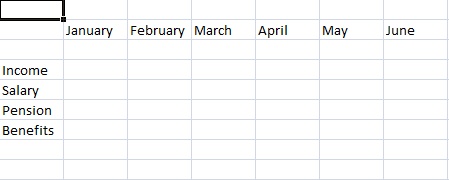
Step 3: Put in the months over which you want to budget to run. Type each month in an individual cell along one row of the spreadsheet.

Step 4: Then,
put in a heading for your income and then below this any sub-headings
for the type of income you receive, for example salary, pension,
benefits.
Step 5: Now we need to add your expenditure. In
the same column that you have typed your income types, you need to add
types of expenditure such as rent or mortgage payments, utility bills,
shopping, leisure, TV licence, savings and so on.

Step 6: Once
you have these headings in your spreadsheet, you can start to put in
the calculations so that when you put in figures at a later date, Excel
will calculate any totals automatically.
Step 7: Click on the cell where you want the total to be.

Step 8: Then, click Autosum in the menu ribbon.
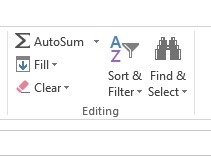
Step 9: Click and drag on the cells that you wish to be included in this total, so that the cells are highlighted. Click Enter.

Step 10: Once
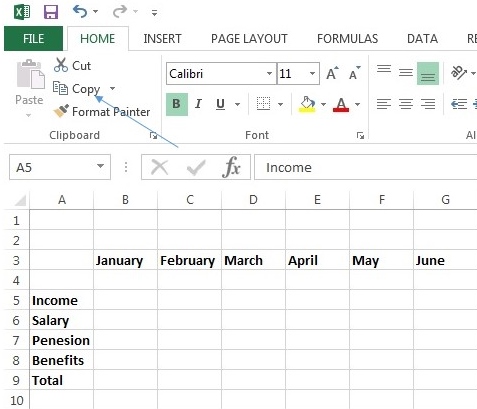
you have the formula in the first cell, you can now copy that cell and
paste it into all the other cells that require the same formula.
Step 11: Now you need to do a total for outgoings, repeat the steps above under your 'Expenditure' section.
Step 12: You
may also want to know the difference between your income and your
outgoings. To calculate this figure, click on the cell where you want
this total – the surplus – to be shown. Then, click Autosum
and click on the first figure you want to include in your calculation,
in this case it’s the income Total. Now press the minus (-) key on your keyboard. Now press the Ctrl
key on the keyboard and whilst holding it down, choose the second
number you wish to include. In this case, the expenditure 'Total'. Click
Enter to complete the calculation.
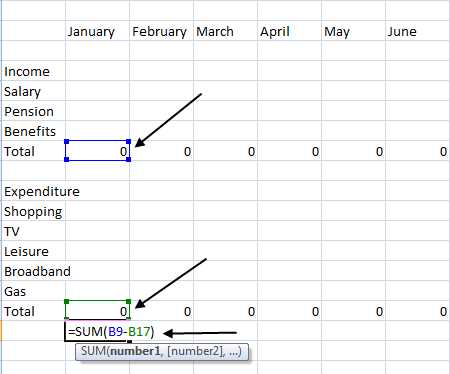
Step 13: Again, copy this calculation along the whole row.
Step 14: Now,
you need to add in figures for your specific income and expenditure,
and Excel will calculate the totals. You may also wish to use formatting
functions like bold or italic to make your budget spreadsheet clearer
and more attractive.
Alternatively, watch our screencast for instructions (click on the [ ] icon on the bottom left to make video full screen):


0 komentar:
Posting Komentar