
Microsoft
Word is a very popular word-processing program. While it can be used
for typing letters and basic documents, a Word document can also include
pictures and graphics for making posters or even birthday cards.
This guide explains how to move around a document in Microsoft
Word. It will feature Word 2010, but earlier versions of Word will use
similar steps or concepts.
You’ll need:
- A computer with Microsoft Word installed.
Follow these step-by-step instructions to move around a document
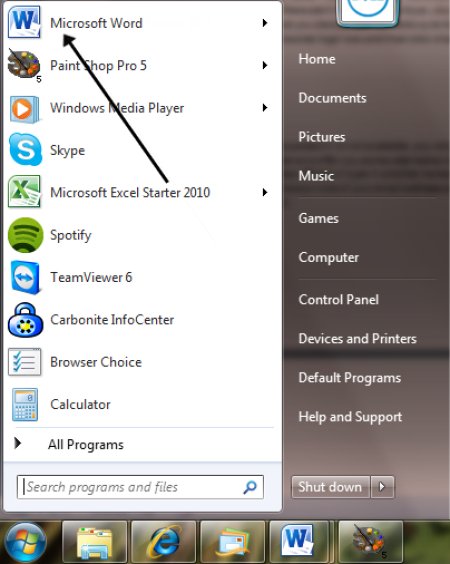
Step 1: From the desktop or from your ‘Start’ menu, open Microsoft Word.
Step 2: Click either File or the Office button at the top left. Select Open and browse to the document you wish to open. Double-click on it with your left-hand mouse button to open it.
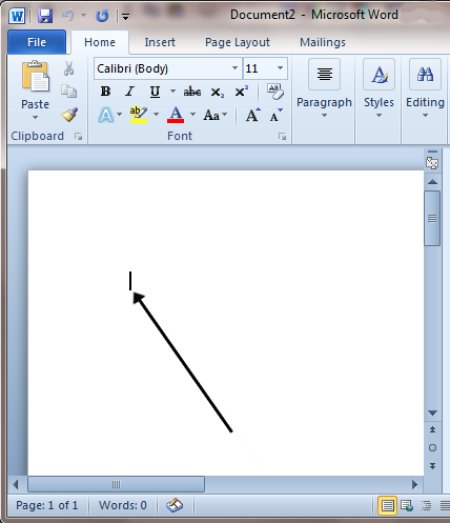
Step 3: The flashing cursor (mouse pointer) in the
document tells you where you’re typing. Wherever the flashing cursor is
placed, the letters that you type will be inserted at that point. When
you start a blank document, the flashing cursor will be at the start of
your document ready for you to start typing.
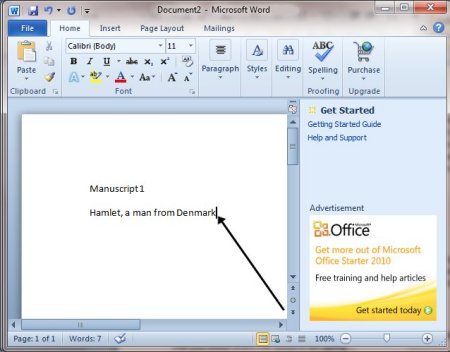
Step 4: As you type, the cursor will also move with each letter. This guides you so that you know where the focus is for typing.
Step 5: The mouse can be used for moving around a
document. When the mouse pointer is moved over a text area, the pointer
will change from an arrow to a ‘text select’ or ‘I-beam’ icon.
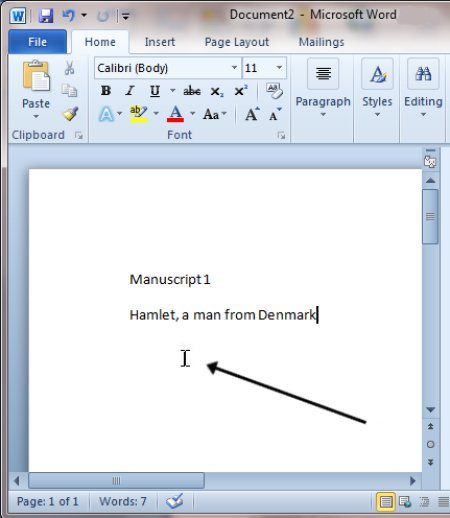
Step 6: Move the text select/mouse pointer with your mouse to where you would like to change or add text. Click the left-hand mouse button. This will then place the flashing cursor at the point where you have clicked so that you can edit or insert text.
Step 7: You can also move around your document using the arrow keys on the keyboard.
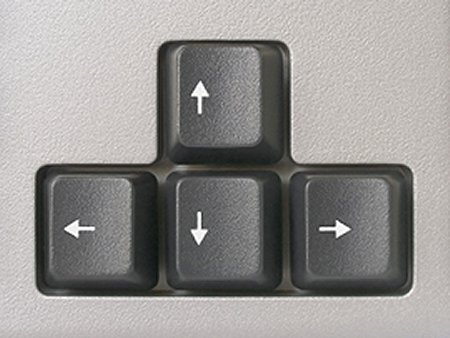
Step 8: Pressing these arrow keys will move the
flashing cursor up a line of text, down a line or left one character or
right one character. Using a combination of keystrokes can also move the
cursor further – e.g. holding down the Ctrl (control) key and pressing the left arrow key will move the cursor left one word. Holding down Ctrl and pressing the up arrow key will move the cursor to the start of each paragraph.
Source : https://www.digitalunite.com/guides/microsoft-word/how-move-around-document


0 komentar:
Posting Komentar